
ETP Admission - Milan market - Create a new project
To create a new listing project, click the “Create a new project” button on the “Projects” tab.
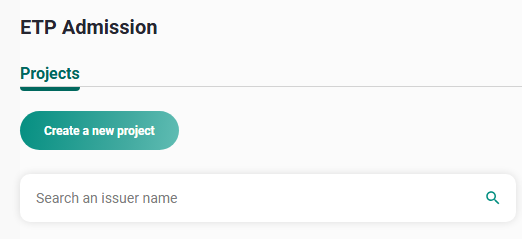
1. Create a new project
A project creation form will appear:
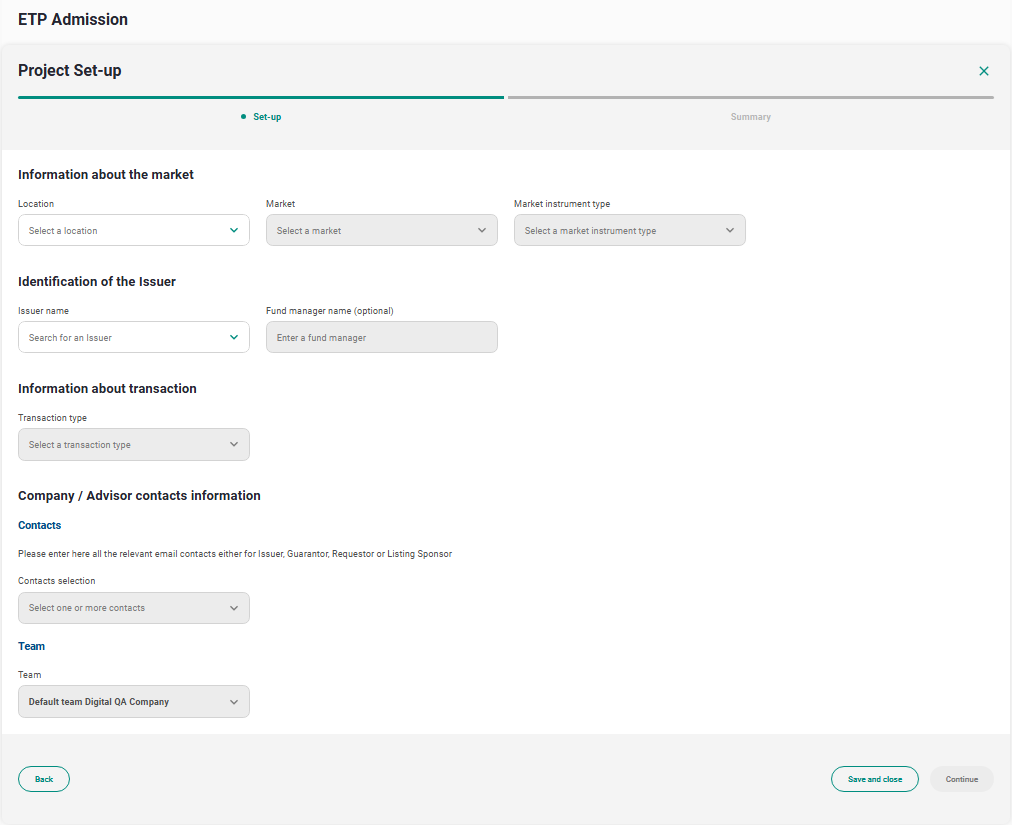
2. Project Set-up
Choose the Location, Market, Instrument type, Issuer name and Transaction type, then enter the relevant contacts for the project.
Click "Continue". A summary of your information will be displayed. You can either:
- Go back and edit some information if needed
- Save and close the request: it will appear as a "Draft" on the project list
- Create the project: The project folder will be created, and the project will appear as "Ongoing" in the project list
Once the project has been created, the Project status is "Ongoing" and the Assessment phase begins.
Project folder
This is how the project folder looks like when a project is created:
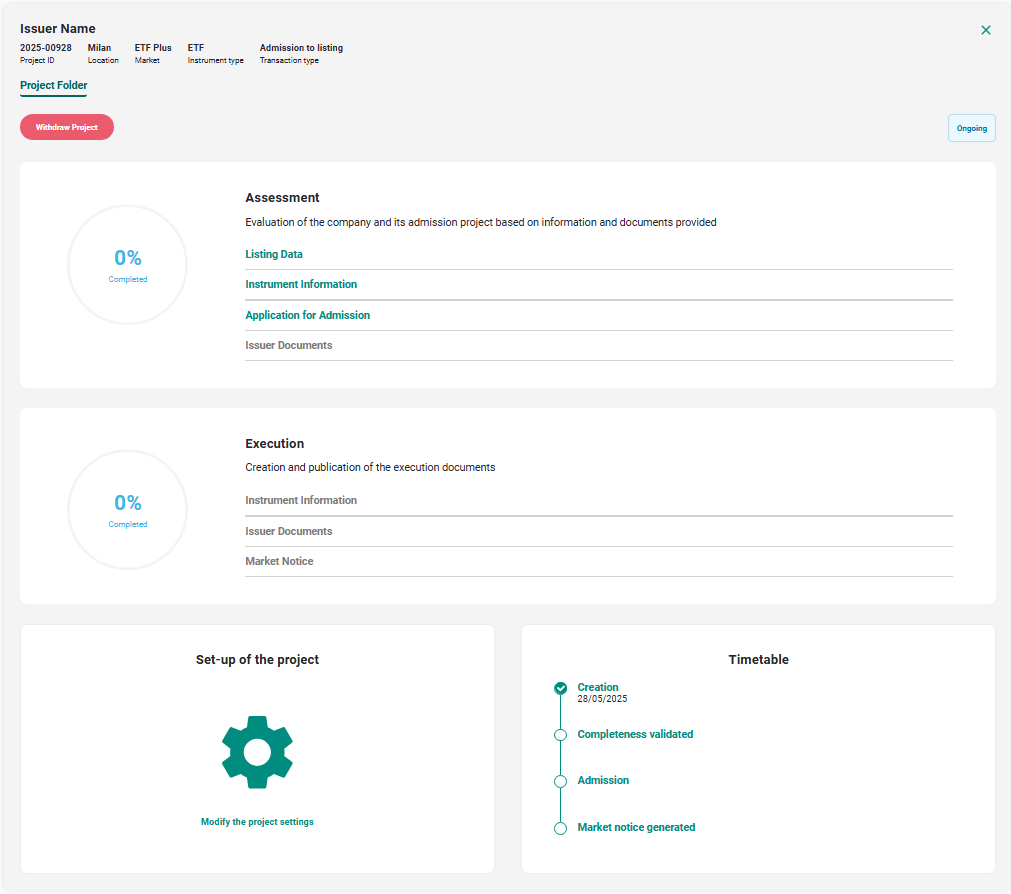
3. Project Folder - Location Milan
Assessment phase
Listing Data
To initiate the assessment phase, click on "Listing data" on the project folder to enter the general information about the listing. Once it has been done, click on validate.
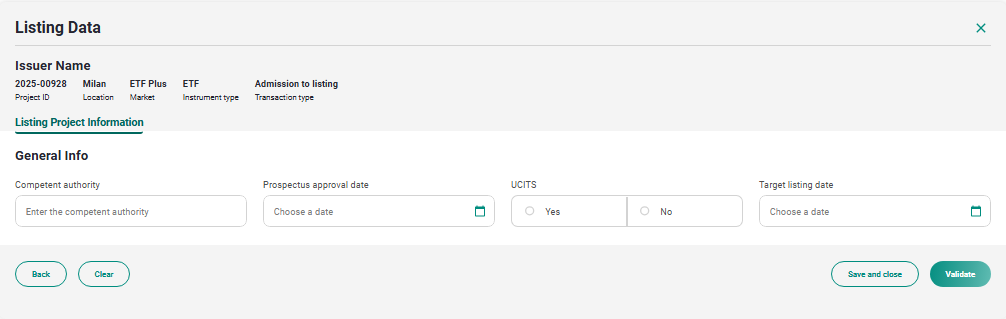
4. Listing Data
Instrument Data
Instrument Data is summarised in the first tab. It displays the validation status of each task related to the instrument.
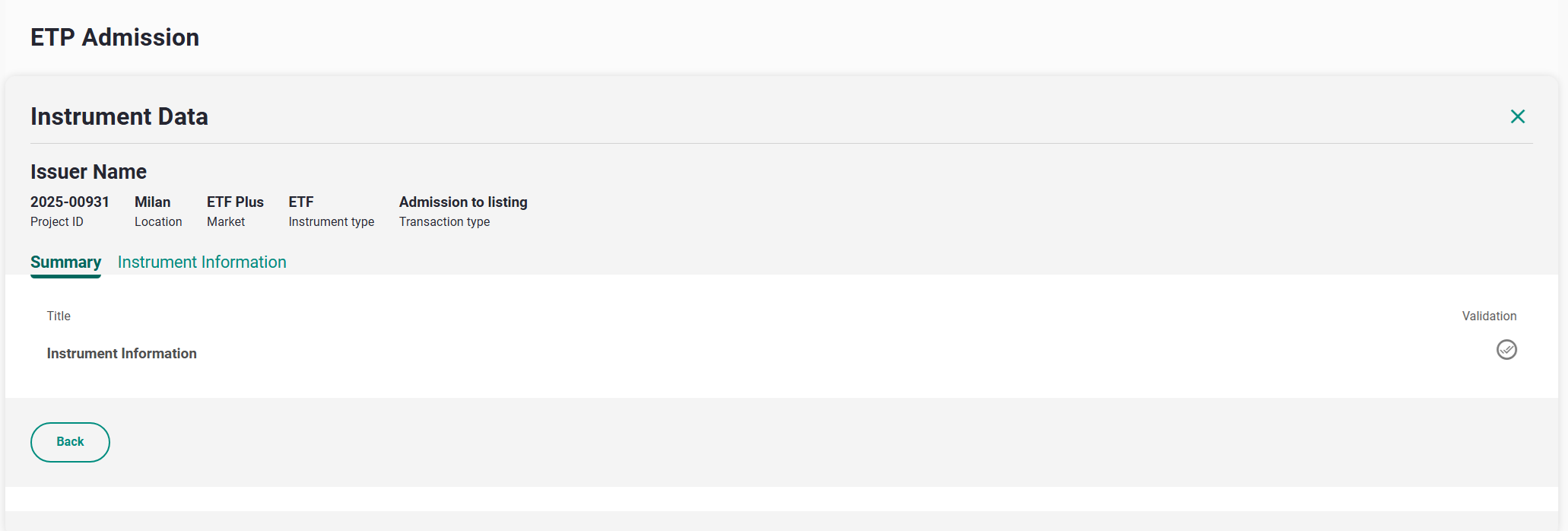
5. Instrument Data - Summary
Instrument information
Instrument information can be uploaded in a .CSV format to facilitate the process of entering data on the platform.
Download the .csv generator, fill it in with the right information and upload it back onto the platform as shown in the screen below:
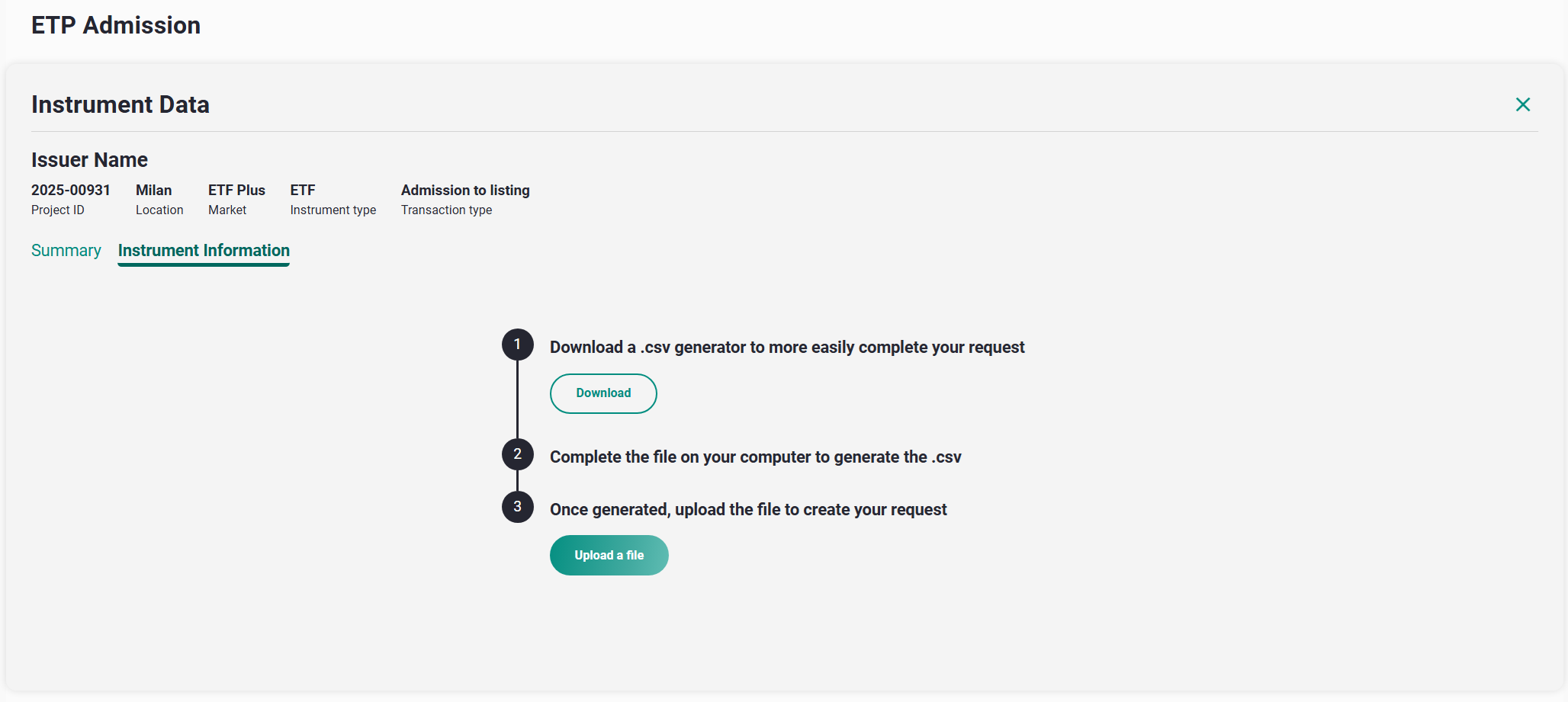
6. Instrument Information download
You will need to enable the embedded Macro to allow the csv generation. To do so, right-click on the file and select “Properties”, and in the “General” tab, tick “Unblock”.
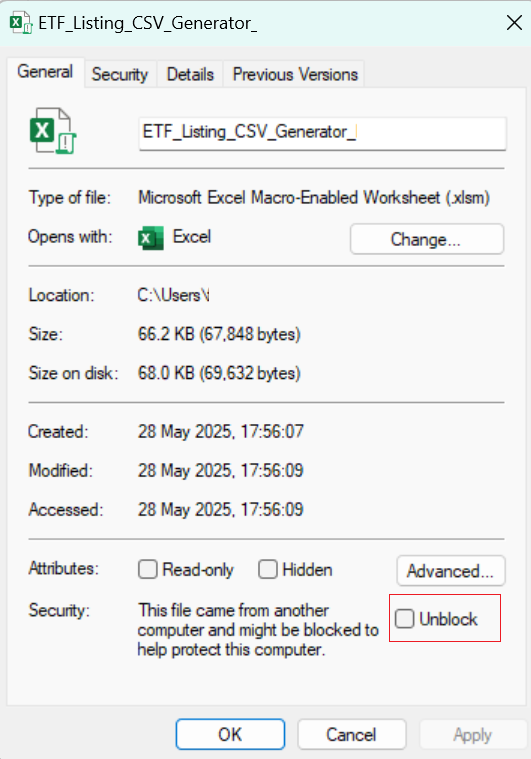
7. Macro Unblock
Open the downloaded file and start filling it in. You can type the values manually or use the dropdown list of values when available.
Once the file is completed, click on Generate CSV to save the version of this version of the file, ready to be uploaded on the application.

8. csv generator
The data is then automatically converted to a table (see example below), which you can either save as a draft or validate. Euronext will receive a notification and will review the form.
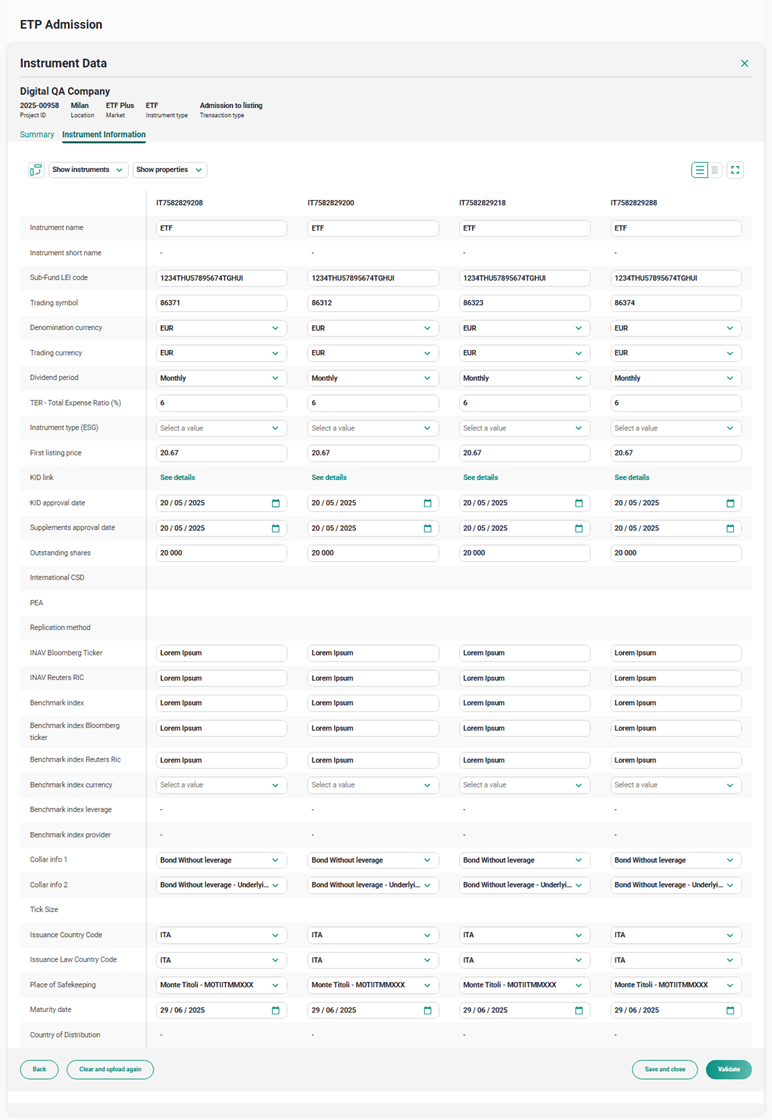
9. Instrument Information
When Euronext has validated the form, you will see a notification on the top of the page.

10. Listing Data
Application for Admission
Application for admission is only intended for ETP Plus as target market. If this is the market of your choice, you must fill in the application for admission and have it signed by the correct issuer contacts.
You should follow the signature process as detailed below. You will then be able to validate the form and submit the form to Euronext when finalised.
Signature process:
At the end of the form, you will be requested to enter the email address of the designated signatory.
Click on Request Signature to have the designated signatory receive an email from DocuSign. The signatory must then follow the link in the email to review the application for admission and sign it electronically.
Once the application has been signed, submit the application for admission clicking on Submit to Euronext.
The application will be reviewed by Euronext, and validated if correct.
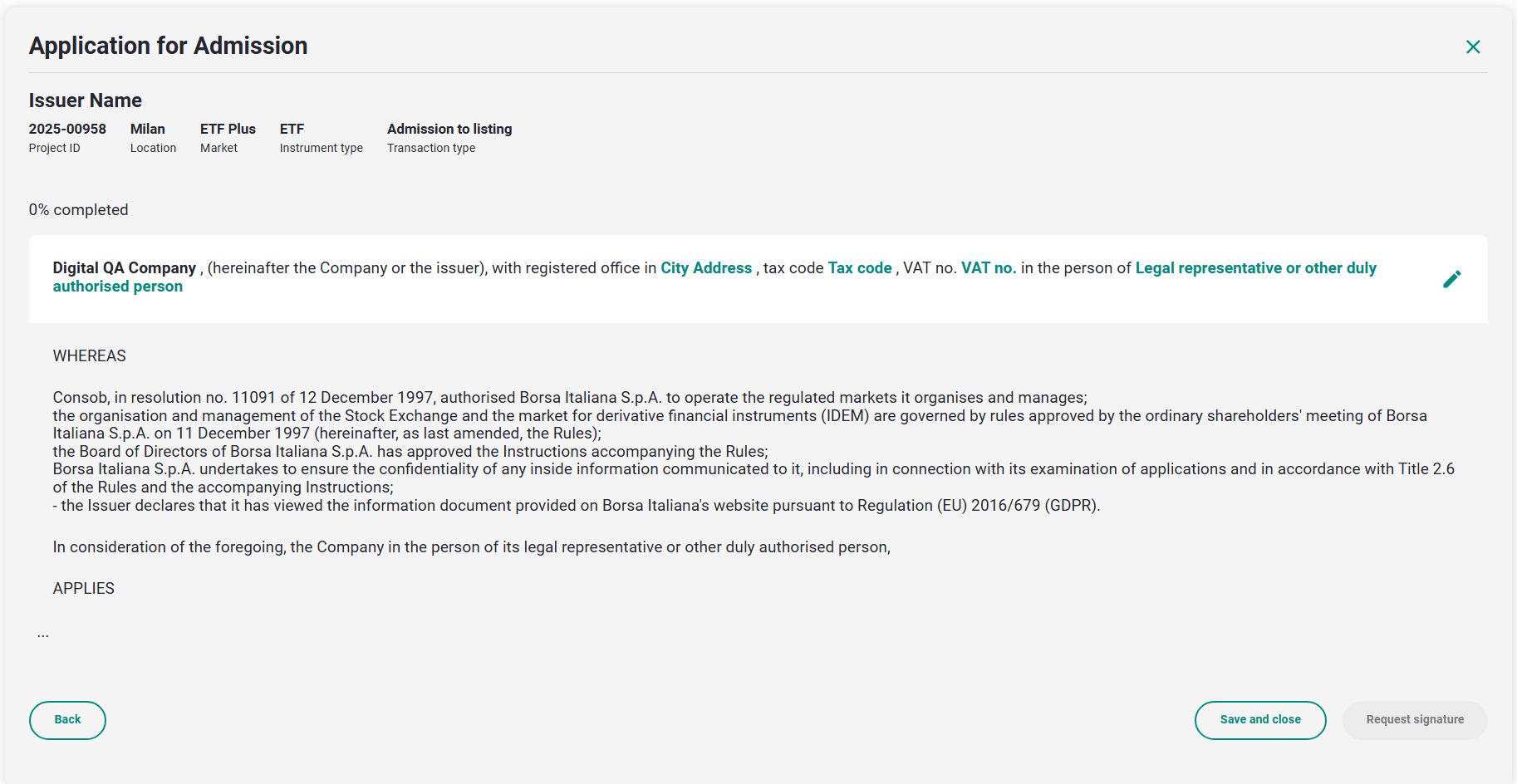
11. Application for Admission form
Issuer Documents
As a client user you will need to upload the required documents through the Issuer Documents interface.
You need to upload all the necessary documents, select them by checking the box next to each document, or the Select all checkbox, and then click the Submit button.
You need to complete and submit the form according to the Market you chose at the beginning of the project creation:
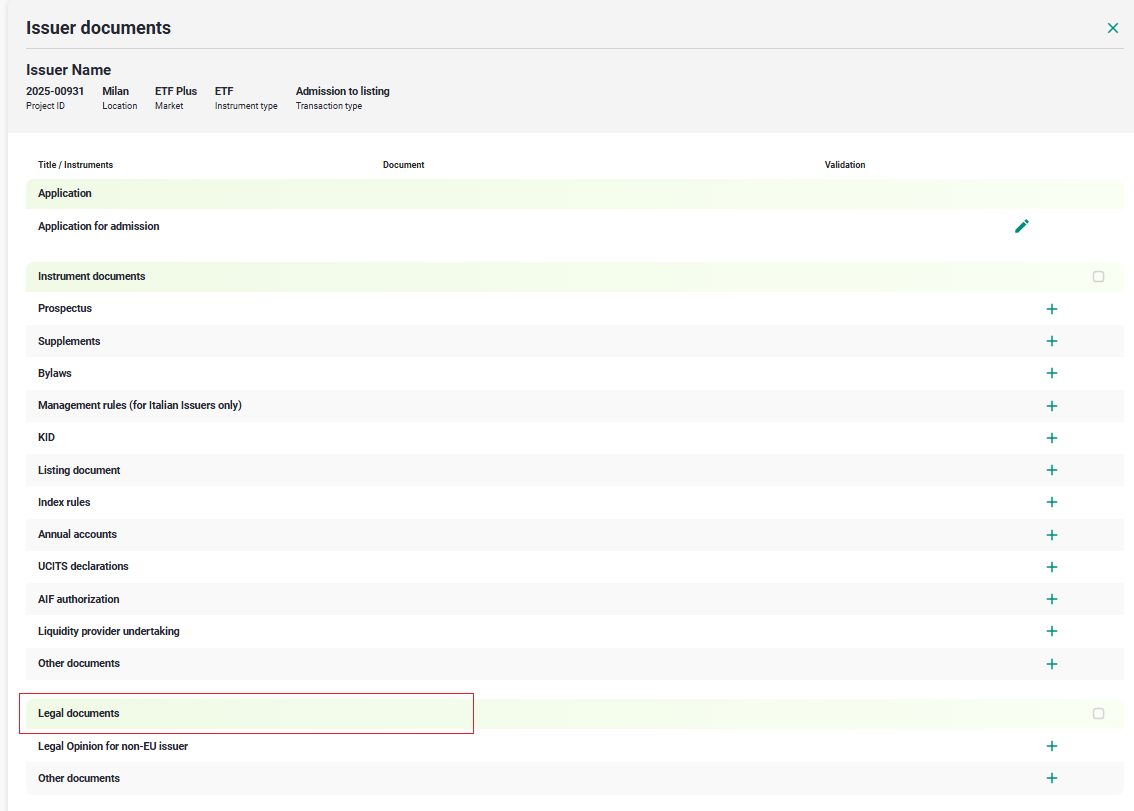
12. Issuer Documents - Milan
These documents are then checked for compliance by Euronext listing agents and Euronext Legal team before complete the validation.
Anytime a document is uploaded, the antivirus scan will run on the files. To check the document status click on "Refresh" button and if the file is clean, a green flag will appear next to the document.
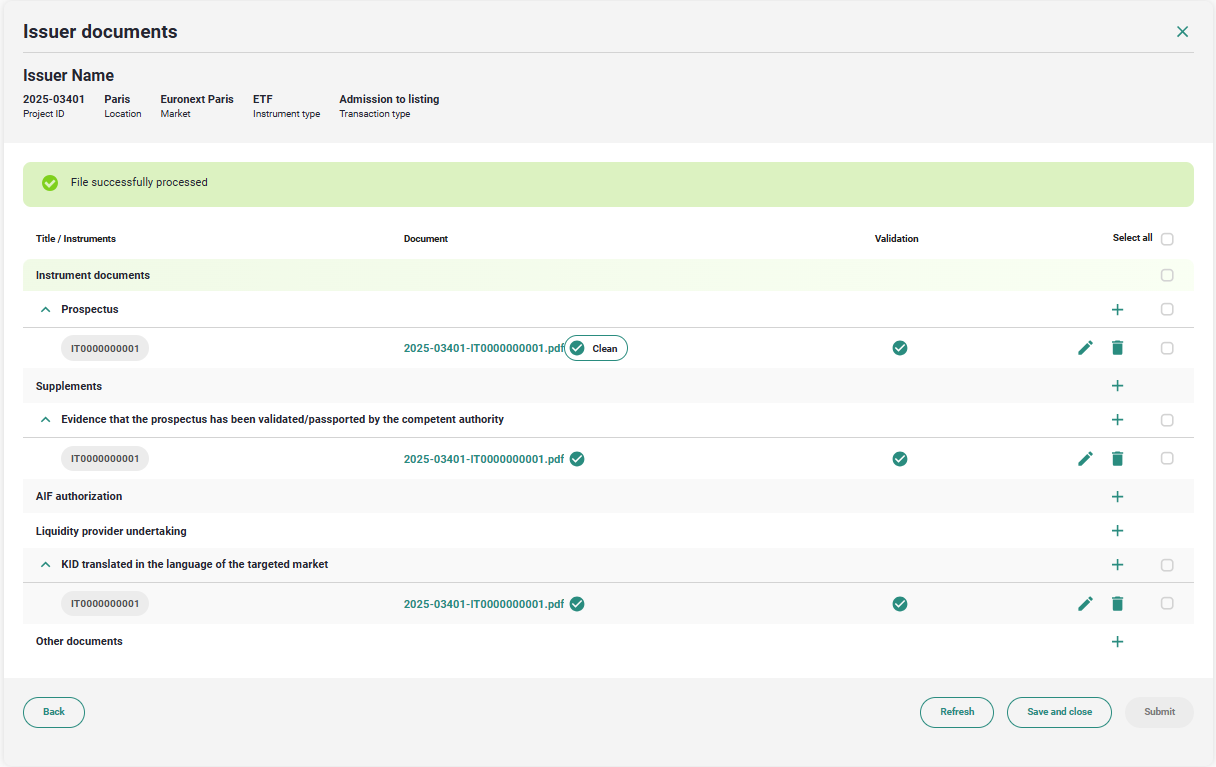
13. Issuer Document - Antivirus
Select all the documents you have uploaded, flagging them one by one or using the Select all flag. The Submit button will be enabled, click on it to submit to Euronext for validation.
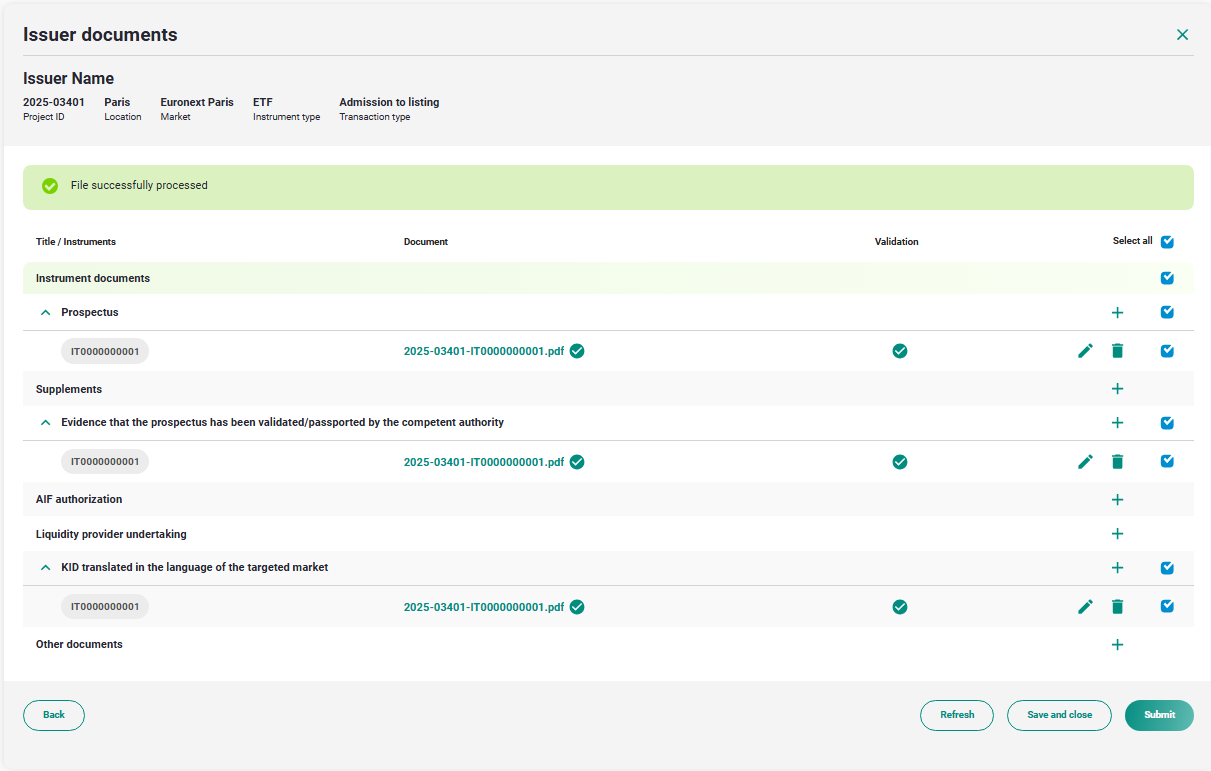
14. Issuer Document - Document Selection
When Euronext operator validated all the steps of the Assessment Phase, the project status is "Admitted"
Execution Phase
In the Execution Phase, you can amend specific attributes of the ISINs, and update some documents in the Issuer document section, if needed.
Instrument Data
You can now update the Outstanding Shares and Prices as necessary, using the same CSV download/upload method as previously.
15. csv Execution download
Once the information is updated, validate and wait for Euronext approval. You will be notified when this is done

16. Euronext approval
Issuer Documents
Euronext can request that you update some document for publication on the website. In this case, you will see the following screen:
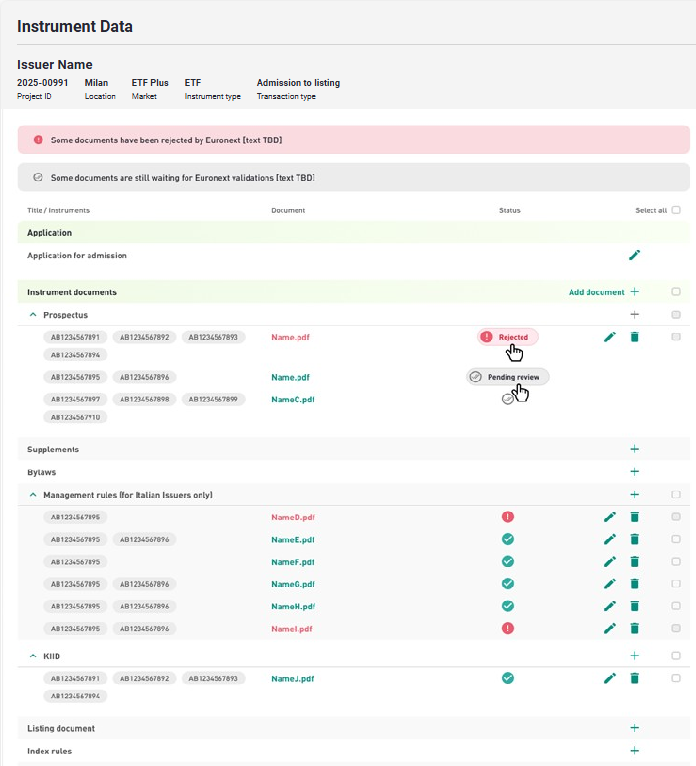
17. Issuer Documents update in execution
Upload new versions of the documents and re-submit them to Euronext.
When the project is completed, the status will turn to "Executed" and the Market Notice will became available.