Accessing the tool
Accessing the tool
Access is governed centrally by Company Settings (OAuth2/JWT) — there is no separate CA Datamining login.
- A Euronext user with a recognised profile can open the tool directly; only the pages and actions allowed for that profile are shown.
- A Euronext user without a CA Datamining or Portfolio Management profile is blocked with the standard platform message: "Sorry, an unexpected error has occurred while trying to retrieve user permissions. Please try again later or contact support."
- Two profiles exist:
- CA Datamining Analyst — works the Special CA queue (view, edit, create, review, reject, retry, export); Portfolio Management is visible read-only.
- Portfolio Management — manages the company/portfolio list (add, edit, deactivate, activate); the Special CA queue is visible read-only.
Special CA records list (Unified Alert Page)
Upon accessing the tool, users land on the Unified Alert Page. This list provides an overview of every CA record captured from Bloomberg or created manually.
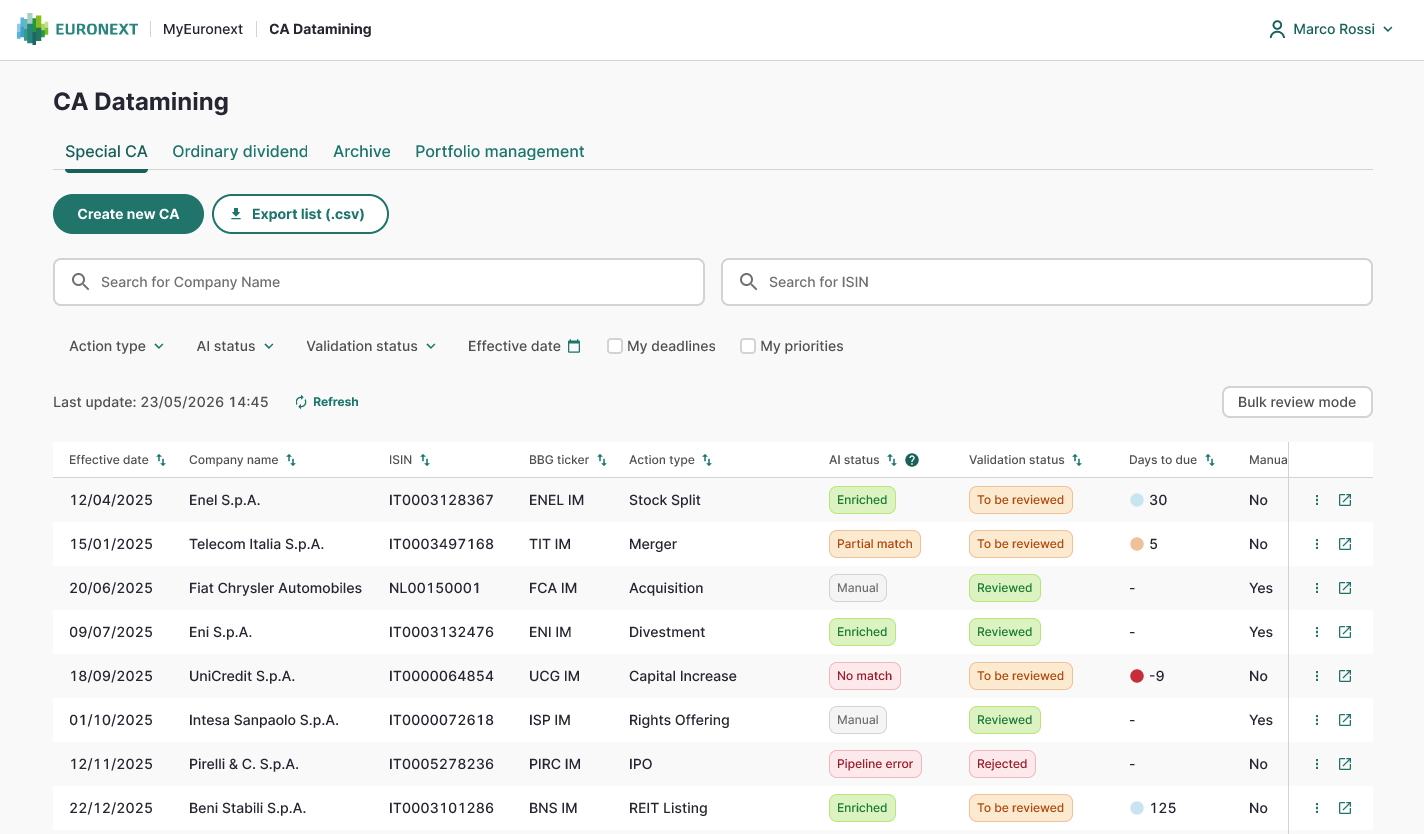
The list includes the following columns:
Column | Description |
|---|---|
Effective Date | Date the corporate action takes effect / is paid |
Company Name | The company the CA record belongs to |
ISIN | International Securities Identification Number of the underlying security |
BBG Ticker | Bloomberg ticker for the security |
Action Type | The type of corporate action (e.g. Special Dividend, Stock Split, Spin Off) |
Details / Notes | Free text notes about the record, editable by analysts |
AI Status | Outcome of AI enrichment for this record |
Validation Status | Current review outcome for this record |
AI Status values
Status | Meaning |
|---|---|
Enriched (fullMatch) | AI extracted all mandatory fields for the CA type |
Partial Match | AI extracted some but not all mandatory fields |
No Match | AI could not extract usable data |
Pipeline Error | The AI pipeline failed to process the record |
Timed Out | AI did not respond within the expected time |
Retry Exhausted | Automatic retries were exhausted without a result |
Manual | Record was created or fully completed by an analyst |
Only these business-facing AI statuses are shown to users — internal technical/processing statuses (e.g. "Submitted") are never displayed.
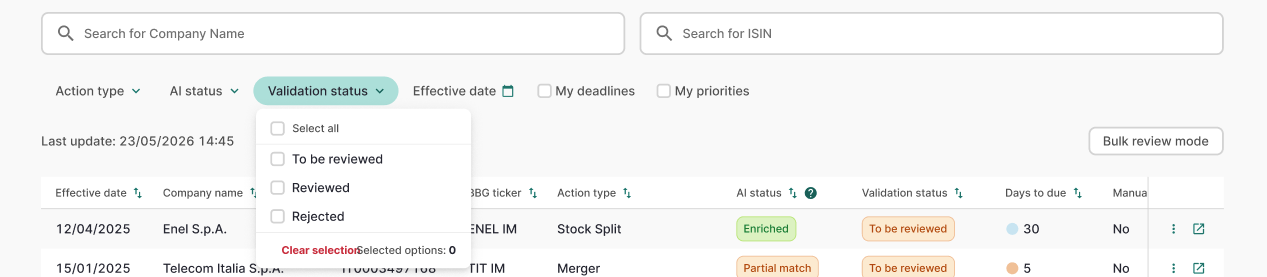
Validation Status values
Status | Meaning |
|---|---|
To be reviewed | Record is awaiting analyst review |
Reviewed | Record has been confirmed by an analyst (Reviewed by / Review date shown in the record detail) |
Rejected | Record has been rejected by an analyst with a mandatory reason; archived after 90 days |
Filters and search
The list can be filtered by Action type, Effective date, "My deadlines", Company name, ISIN, AI Status and Validation Status. Records can be searched by Company name or ISIN.
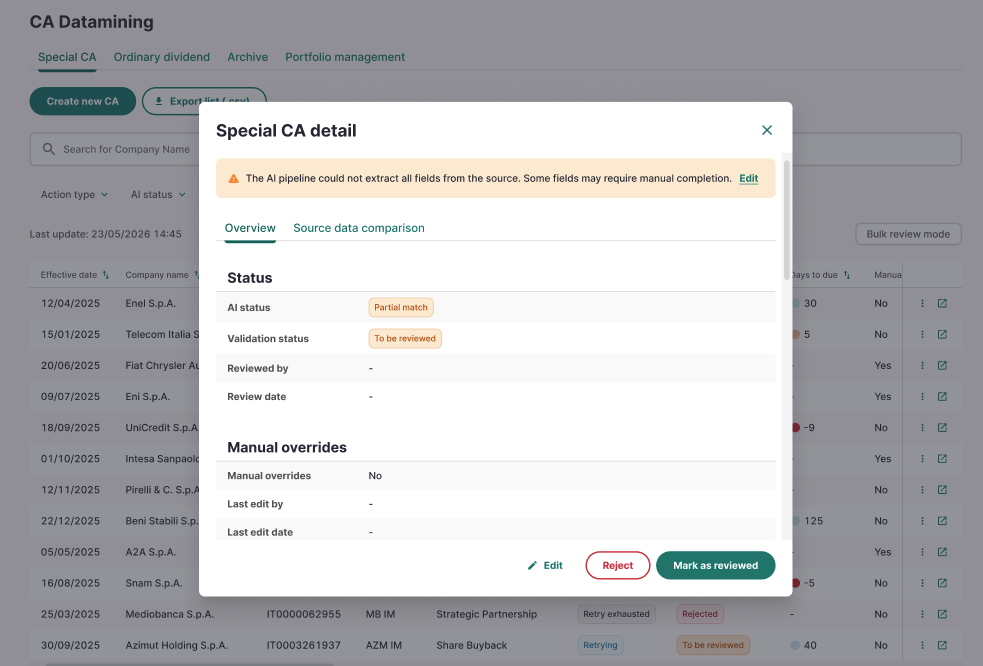
Clicking on a record (or its row action) opens the record detail modal.
Record detail view
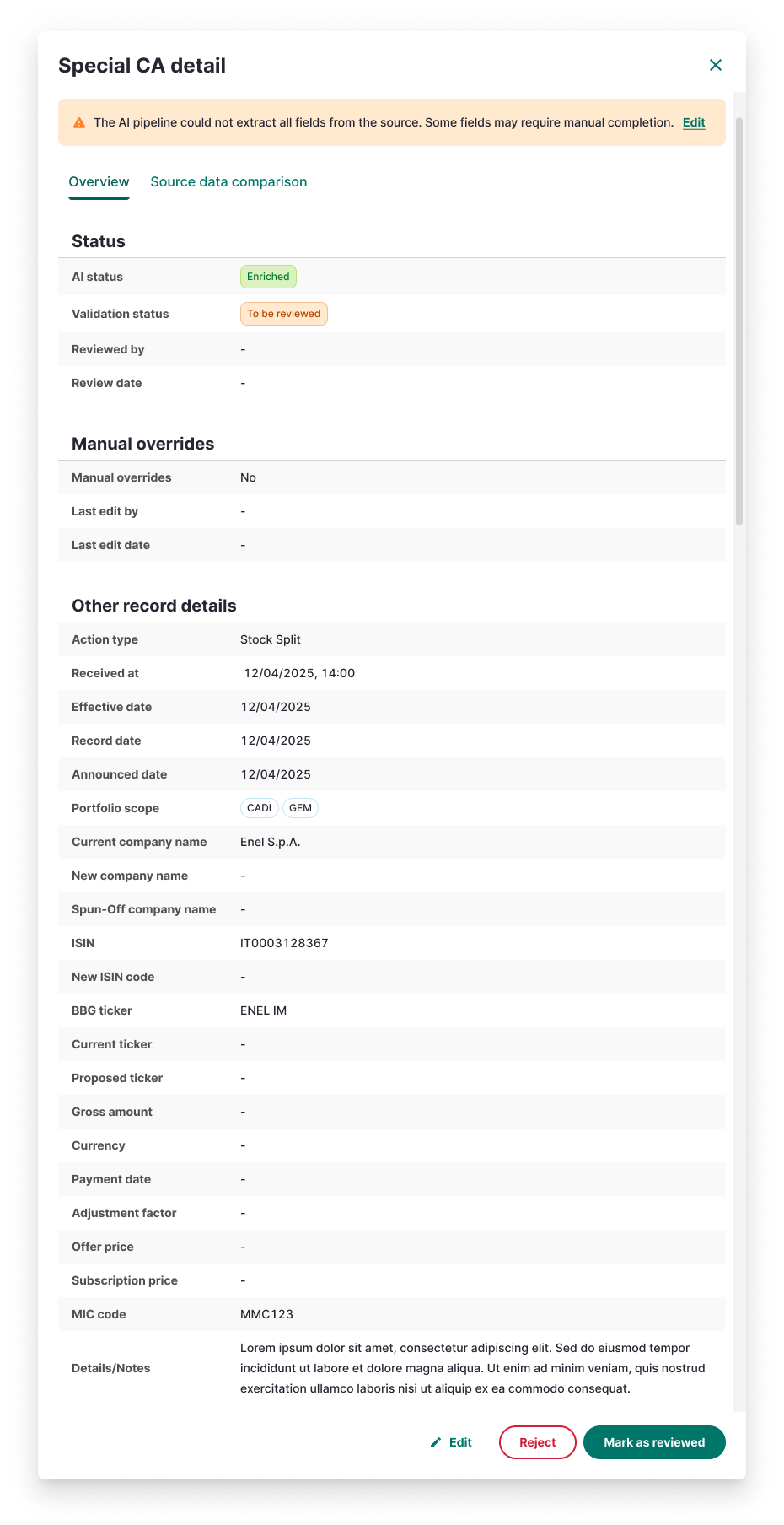
The record detail modal shows the full information AI extracted (or the analyst entered) for a CA record.
- Common fields shown for every CA type: Announcement Date, Effective Date, Current Company Name, ISIN, BBG Ticker, Action Type.
- Type-specific mandatory fields, for example:
- Special Dividend → Gross Amount
- Stock Split / Reverse Stock Split → Adjustment Factor / Ratio
- Rights Issue → Subscription Price
- Spin Off → Spun-Off Company Name (read-only, sourced from AI)
- Change of Name → New Company Name
- Change of Ticker → Current Ticker and Proposed Ticker
- If the AI status is Partial Match, fields not extracted are shown as "-" instead of being hidden.
- If AI has not returned a result yet, the original Bloomberg email content is shown with a waiting indicator.
- The modal also shows, when applicable: Validated By / Validation Date, Last Edited By / Last Edited At (most recent edit only, no full history shown here), and the read-only Received At timestamp.
- The Details / Notes field is editable directly from the modal.