
Submit a New Publication
Open the New Publication Form
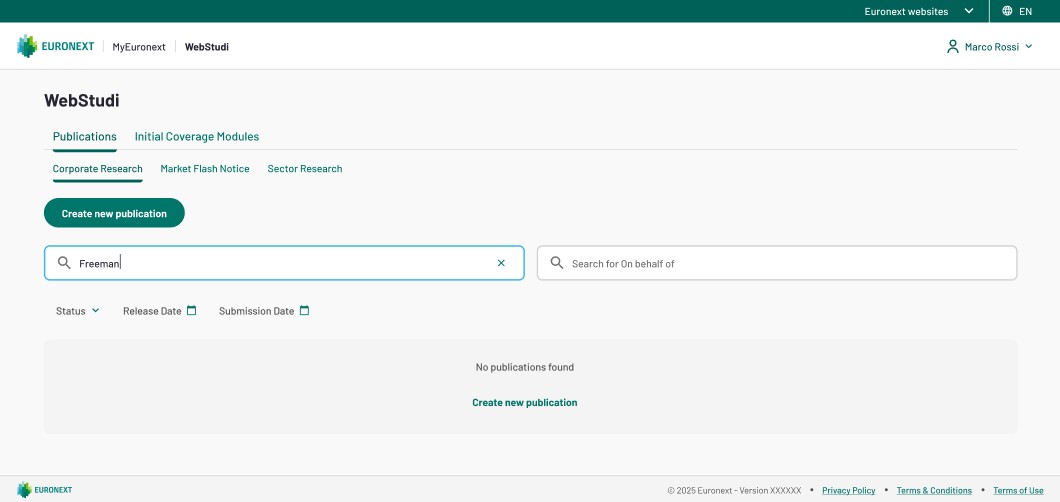
From the Publications page, click the "Create new publication" button at the top.
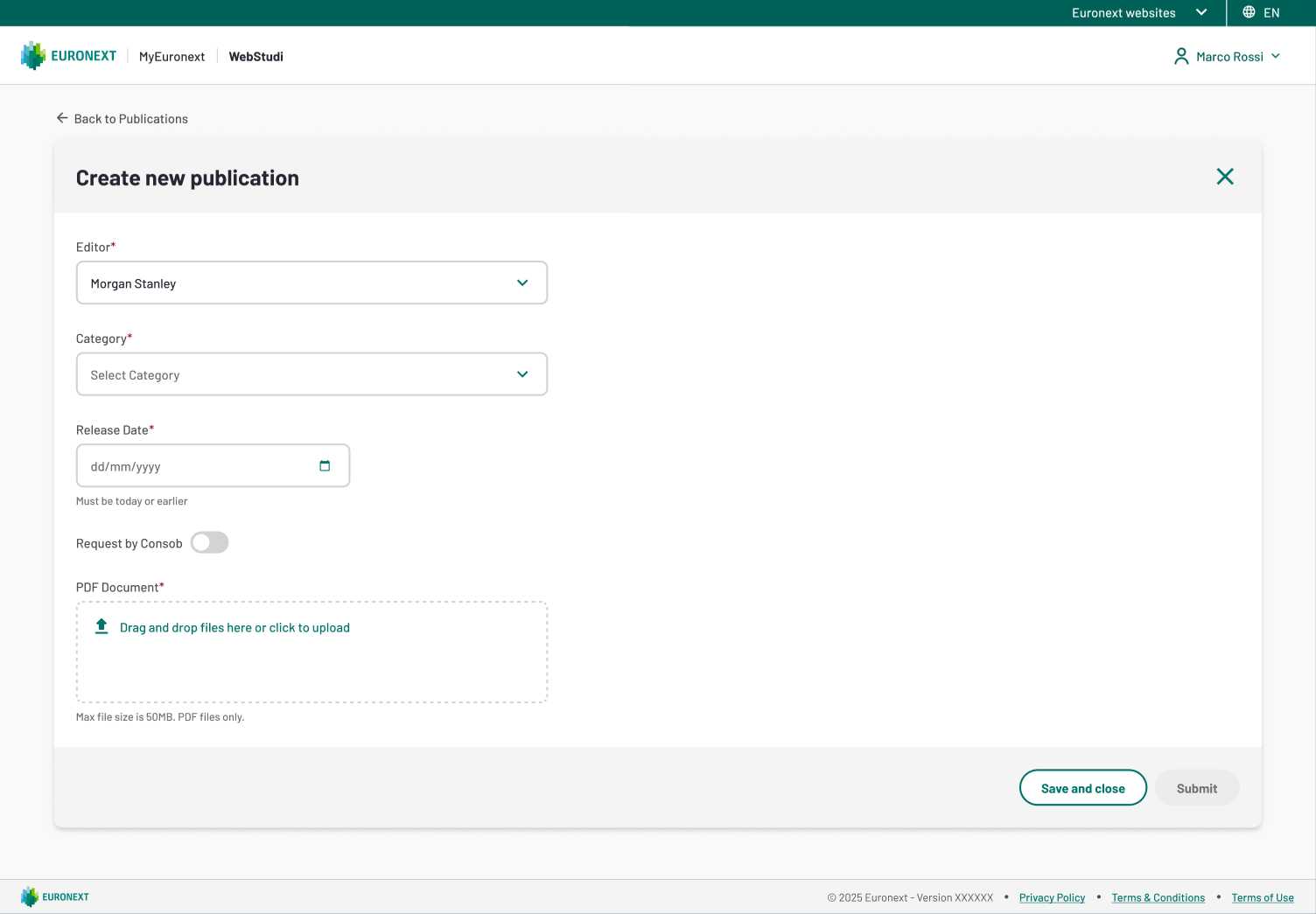
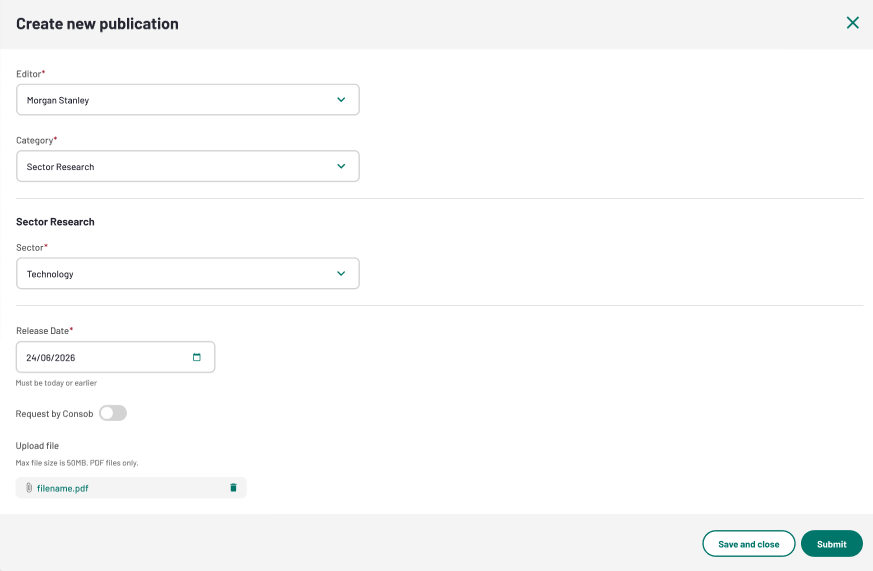
A form opens as a panel on the right side with these sections:
- Publication basics
- Category-specific fields (changes based on your selection)
- Summary (visible at the bottom for review)
Select the Publication Category
The Category field is mandatory and determines which additional fields appear in the form.
Click the Category dropdown and choose one of:
- Corporate Research – In-depth analysis of specific companies
- Market Flash Notice – Urgent market updates
- Sector Research – Analysis of market sectors
Tip: The category cannot be changed after you fill category-specific fields, so choose carefully.
Fill the Common Fields (All Categories)
These fields are required for every publication type:
Editor
- If you are linked to only one company, the Editor field is pre-filled with that company and cannot be changed
- If you are linked to multiple companies, click the dropdown and select the company submitting this publication
- Administrators can select from all WebStudi subscribers
Attention
The Editor field cannot be changed once selected. If you need to change it, cancel the form and start a new one.
Category
- Select the publication type from the dropdown (see Step 2 above)
- This is mandatory
Release Date & Time
- Click the date picker and select the release date for this publication
- Enter the time in hh:mm format (e.g. 14:30 for 2:30 PM)
- The release date cannot be in the future — the system will show an error if you try: "Publication date cannot be in the future."
- This is mandatory
Request by Consob
- This field defaults to "No"
- Change to "Yes" only if this publication is being submitted in response to a specific Consob request
- This is optional
PDF Upload
- Click "Choose file" and select your publication PDF from your computer
- File size limit: 50 MB maximum
- If your file exceeds 50 MB, an error appears: "File size exceeds maximum 50MB."
- This is mandatory
Tip: Ensure your PDF is complete and ready before uploading — you cannot edit the PDF after submission.
Fill Category-Specific Fields
After selecting a category, additional mandatory fields appear. Complete them based on your publication type:
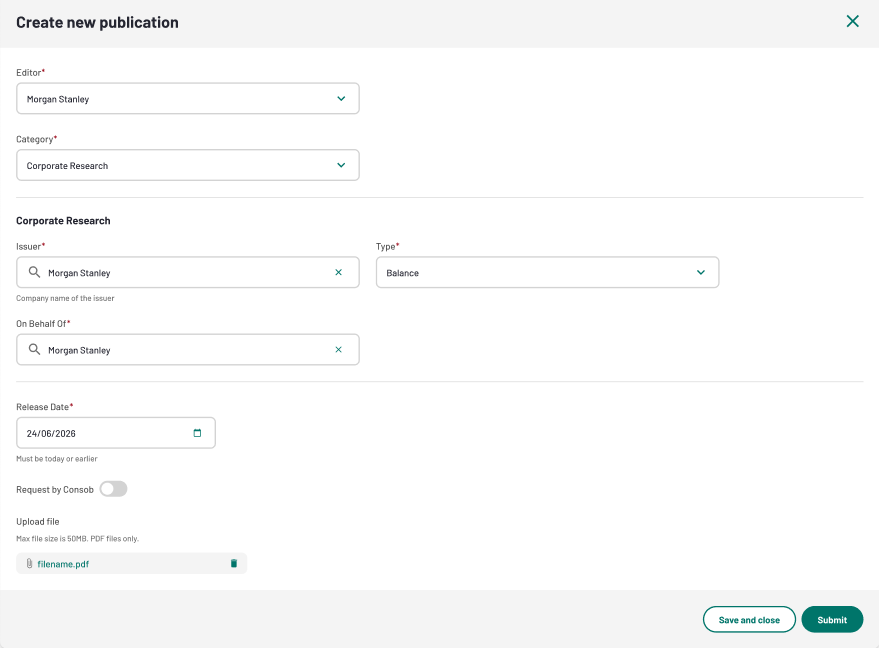
For Corporate Research
Field | Description | Required | Rules |
|---|---|---|---|
Issuer | The company this research is about | Yes | Search by typing at least 3 characters; only eligible issuers (validated for MTA or EGM markets) are shown |
Type | Research report classification | Yes | Options: Semester, Annual, Special Report, Preliminary Report, Consensus, Other |
On Behalf Of | The company this research is published on behalf of | Yes | Pre-filled with the Editor company; can be changed to any WebStudi subscriber by searching |
Note: If the Editor is pre-filled, the "On Behalf of" field will also be pre-filled with the same company. You can change it if needed.
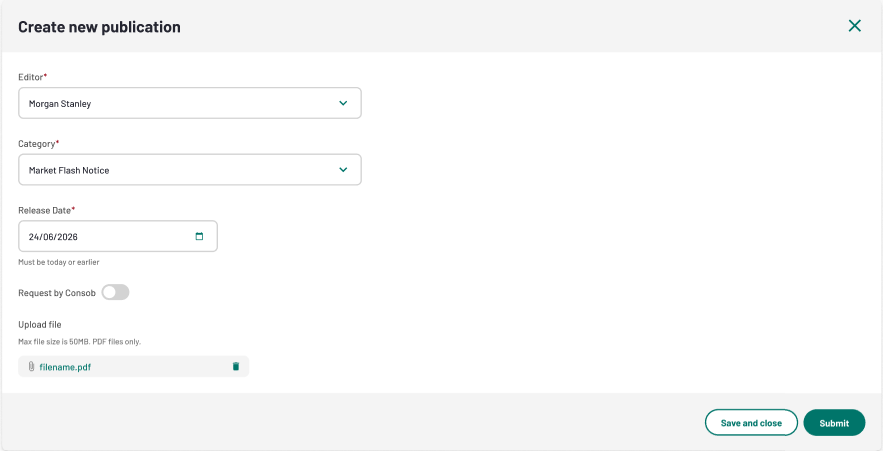
For Market Flash Notice
No additional fields — proceed directly to Step 5.
For Sector Research
Field | Description | Required |
|---|---|---|
Sector | The market sector this research covers | Yes |
Tip: Click the Sector dropdown to see all available sector classifications. If you're unsure which sector applies, refer to the sector definitions in the help panel.
Save or Submit
At the bottom of the form, you have two options:
Save as Draft
- Click "Save as Draft"
- The publication is saved with status "Draft"
- You can return to the All Publications page and edit it later
- A confirmation message appears: "Publication saved successfully."
- Minimum requirement: At least the Category field must be filled
Submit for Publication
- Click "Submit"
- All mandatory fields must be completed
- Upon successful submission:
- The publication receives status "Submitted"
- The PDF and metadata are sent to Borsa Italiana for publication
- The audit trail records the submission
- You receive a confirmation message: "Publication submitted successfully."
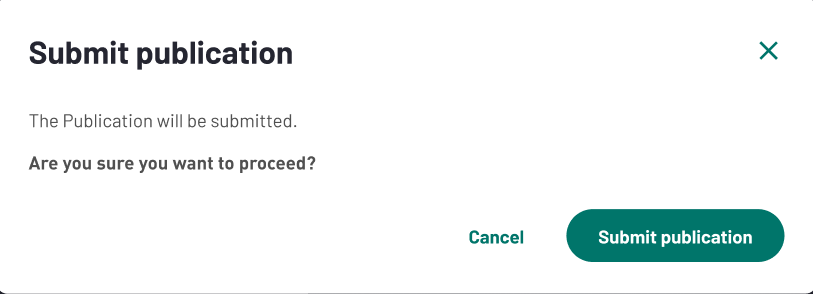
Attention: Once submitted, a publication cannot be edited. If you need to make changes, contact your WebStudi administrator who can delete it and you can resubmit.