Analyst Actions
Creating a new CA record
Use this when a CA event was not captured automatically by the Bloomberg ingestion.
Click Create New CA on the Unified Alert Page.
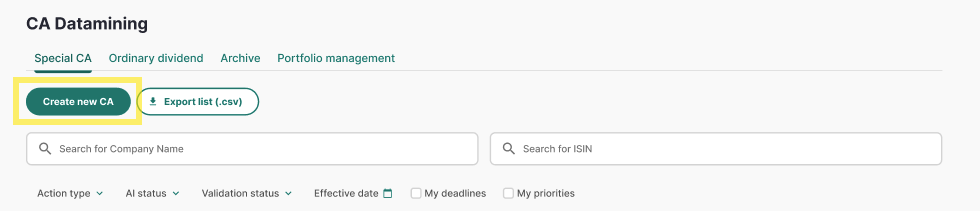
- A "Create new Special CA record" modal opens.
- Fill in the fields — mandatory fields are marked with a red asterisk:
- Company — a lookup against the Portfolio list (not free text). Selecting a company auto-fills read-only ISIN, MIC code and Portfolio scope. If the company is not listed, it must first be added via Portfolio Management.
- Action type — dropdown of the 18 selectable CA types (Ordinary Dividend creation is a later phase).
- Effective date.
- Details / Notes — mandatory free text; carries the reason for the manual creation.
- Other fields shown dynamically depend on the selected Action type (e.g. Gross Amount, Adjustment Factor, Currency, BBG Ticker).
- Click Submit.
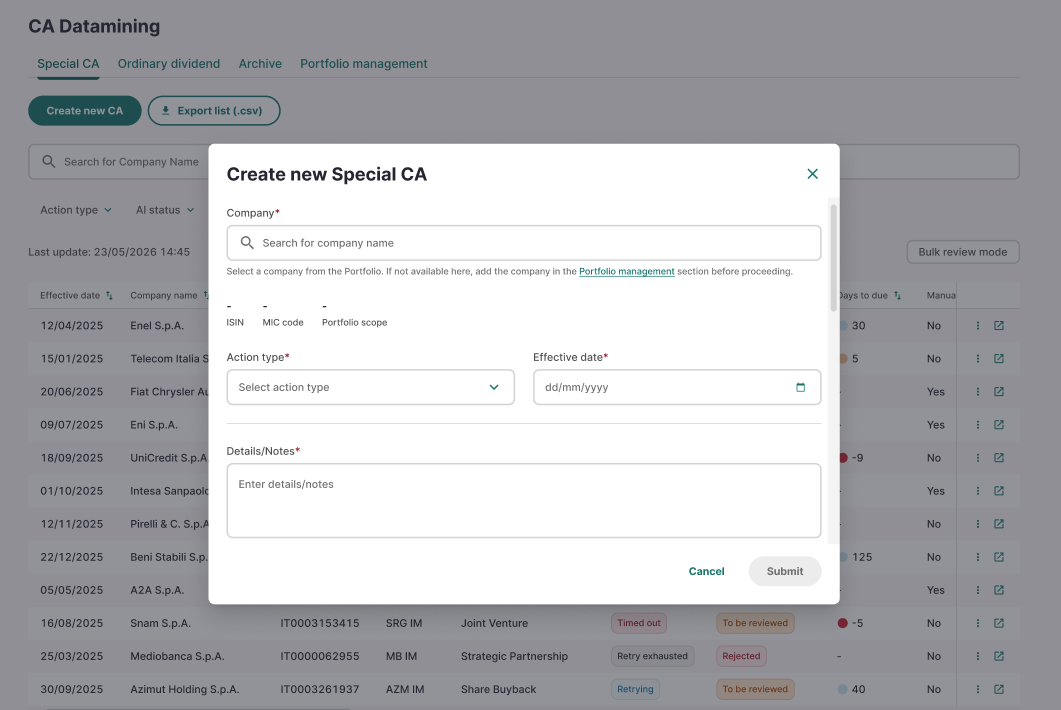
If a record with the same Company + Action type + Effective Date already exists, creation is blocked with an inline error to prevent duplicates.
Editing a CA record
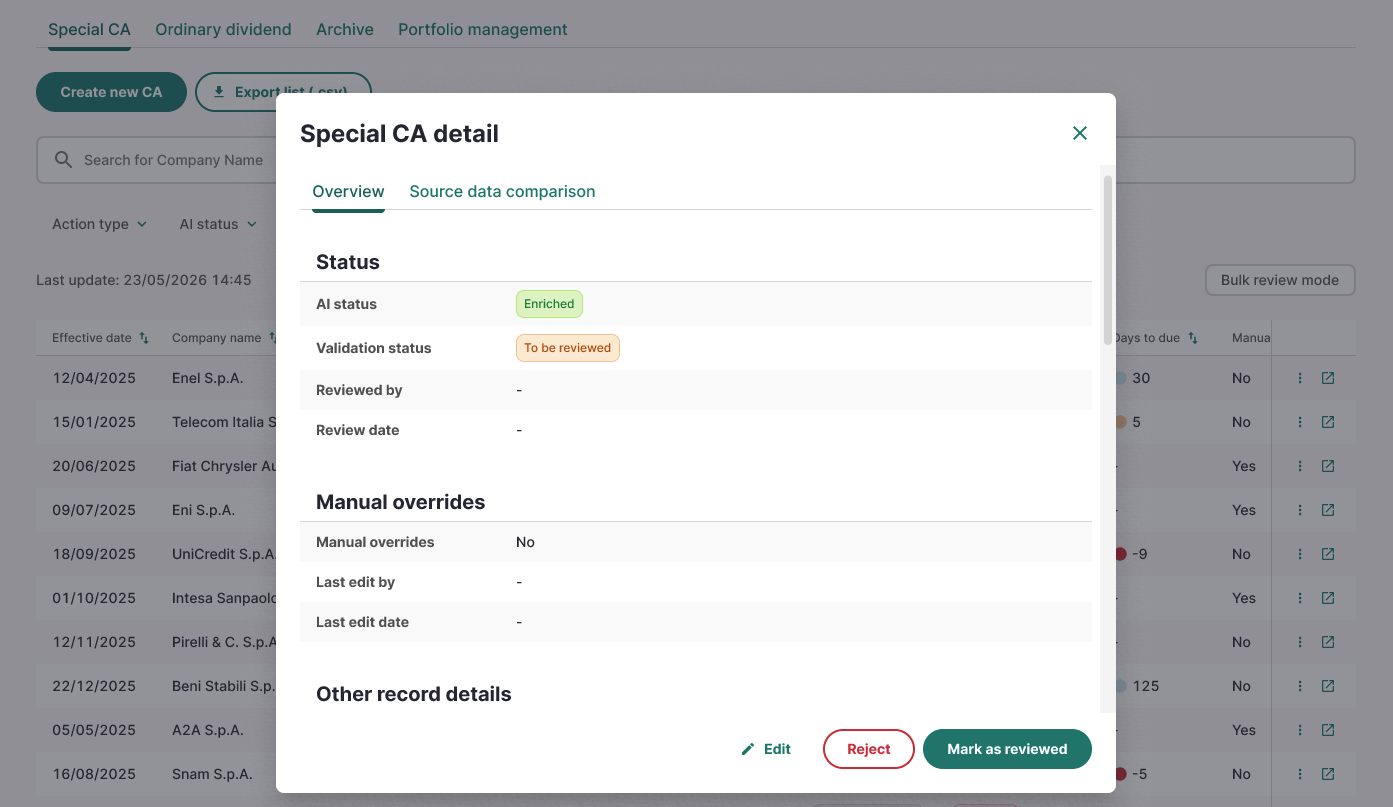
- 1. Open a record and choose Edit (row menu or record detail footer). An "Edit special CA" modal opens.
- 2. Update any field, including AI-populated ones — corrections to AI fields are sent automatically as feedback to the AI team; no extra action is required from the analyst, and a temporary feedback-delivery failure never blocks the save.
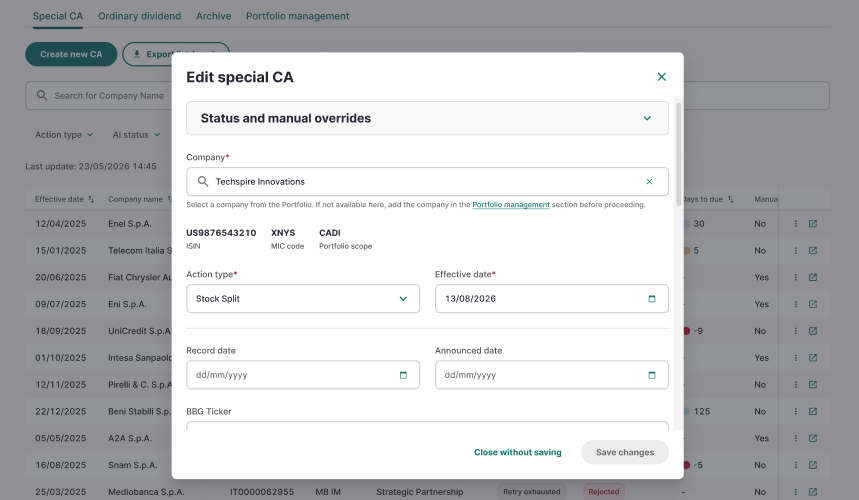
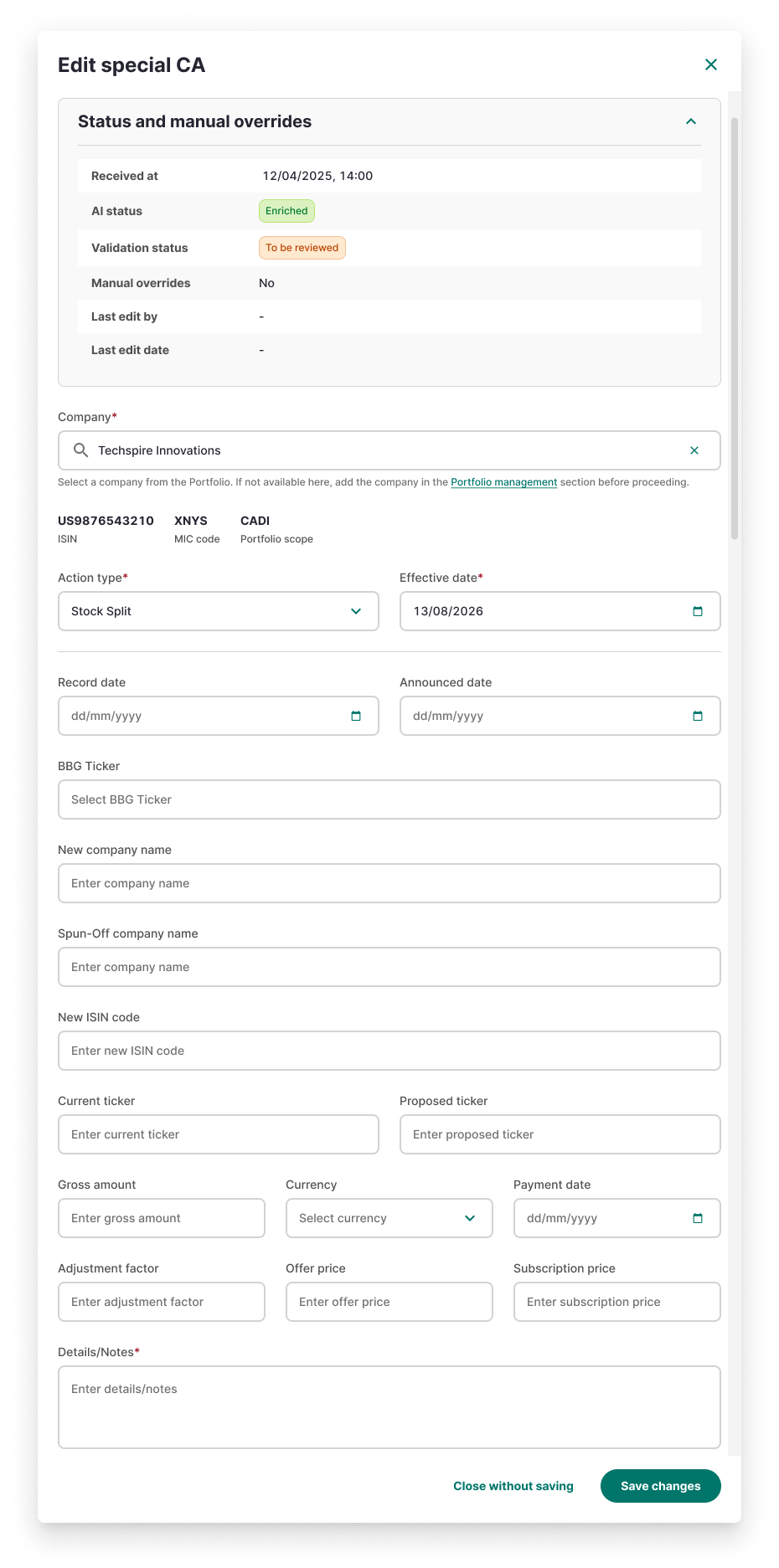
- 3. The modal shows a read-only "Status and manual overrides" section.
- 4. Click Save changes. A confirmation toast "Special CA changes saved" is shown.
Notes:
- Editing a record whose AI Status is No Match / Pipeline Error / Timed Out / Retry Exhausted and setting "Manual overrides = Yes" automatically sets AI Status to Manual and Validation Status to Reviewed in the same save — no separate review step is offered for these records.
- Editing a record that is already Reviewed or Rejected no longer changes its Validation Status.
- When the Effective Date is confirmed on a previously unconfirmed record, the Announcement Date updates automatically.
Reviewing and rejecting records
Reviewing formally confirms a record is correct; rejecting sets it aside without deleting it.
Mark a record as reviewed
- From the row menu (⋮) or the record detail modal footer, choose Mark as reviewed (only shown when the record is eligible — AI Status Enriched / Partial Match, or manually completed).
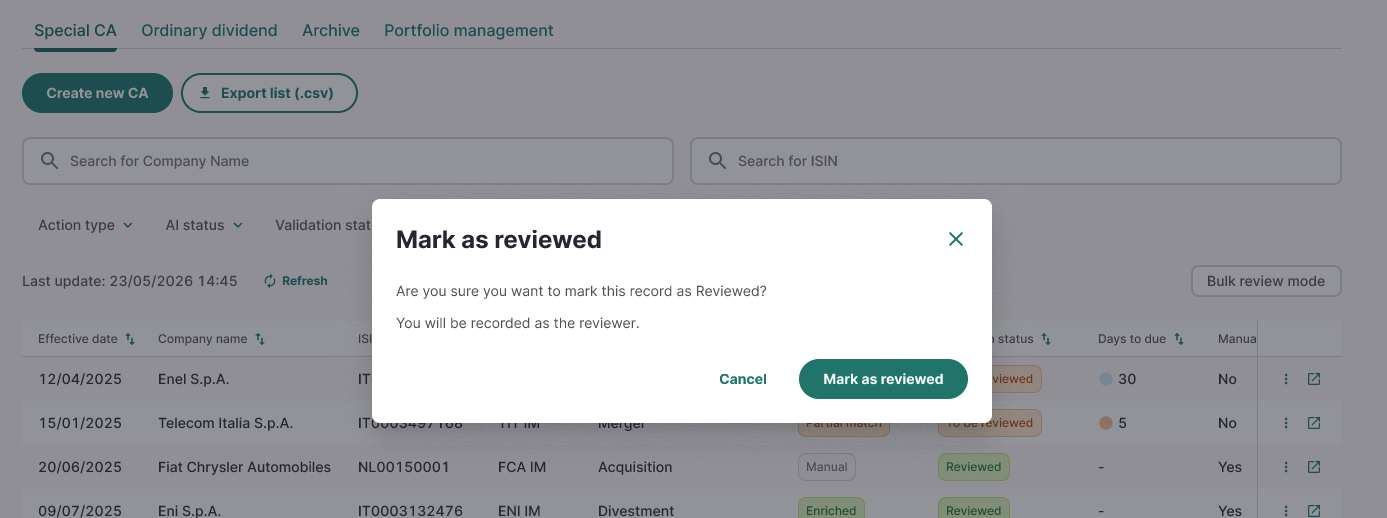
- Confirm in the "Mark as reviewed" dialog: "Are you sure you want to mark this record as Reviewed? You will be recorded as the reviewer."
- A dismissible toast "Special CA reviewed" confirms the action; Reviewed by / Review date now appear in the record detail.
Reject a record
- From the row menu or record detail, choose Reject (available on every AI Status except Manual, and not on records already Rejected).
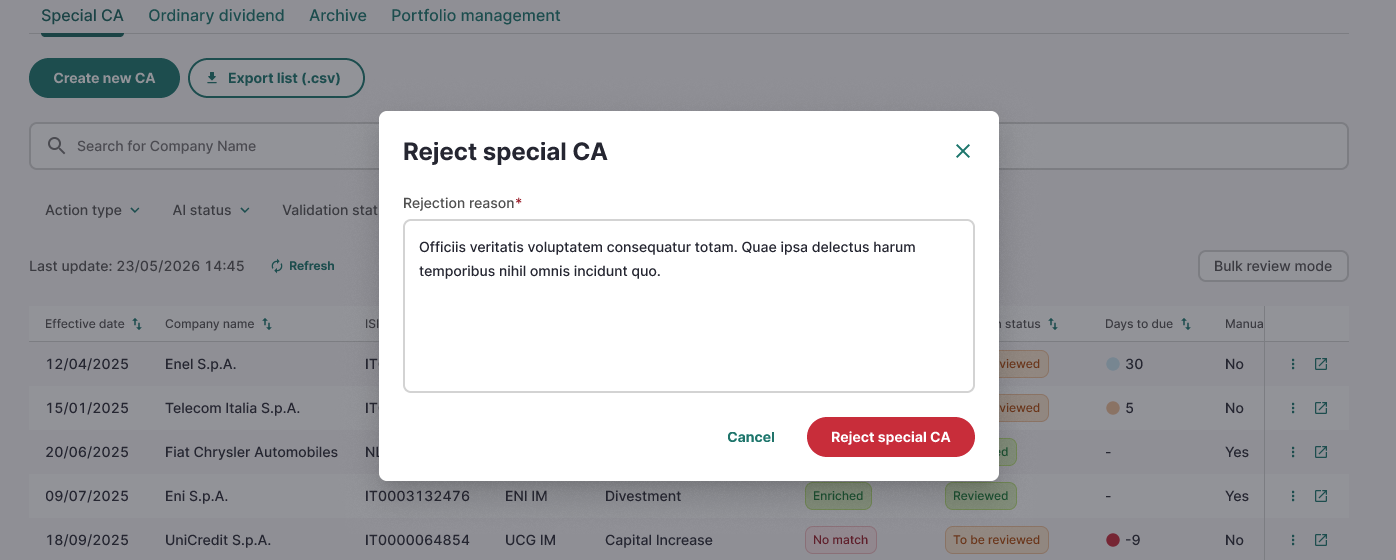
- In the "Reject special CA" dialog, enter a mandatory rejection reason (max 255 characters).
- Confirm — a dismissible toast "Special CA rejected" is shown. The record has no further actions and is archived automatically 90 days later.
Bulk review mode
Use this to review or reject several records in one action.
- Click Bulk review mode on the Unified Alert Page. A dedicated page opens, pre-filtered to
Validation status: To be reviewedand fixed at 25 records per page (AI Status and Validation Status filters are locked; Action type, Effective date, Company name and ISIN filters stay active). - Select records with the row checkboxes, or use the header checkbox to select the current page (up to 25 records; selection does not carry over between pages).
- Choose Mark selection as reviewed or Reject selection (Reject opens the same rejection-reason dialog as the single action).
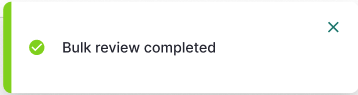
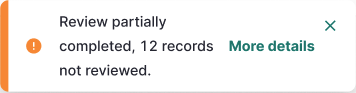
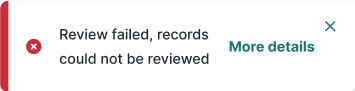
- A toast reports the outcome: Success, Partial (e.g. "Review partially completed, {N} records not reviewed.") or Total failure. Partial/failure toasts include a "More details" link opening an error-detail table (Effective date, Company name, ISIN, Action type) for the failed records. Successful records are always kept, even on a partial failure.
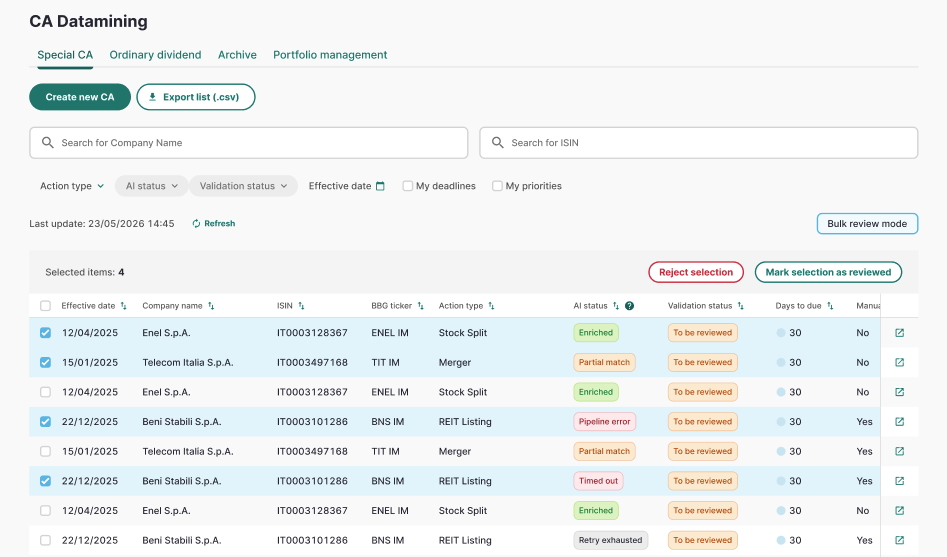
Example of bulk review status: